Start with the content you already have
A category filter helps visitors narrow a news feed, article library or collection of updates without opening a separate archive for every topic. Filter Query Block adds controls around the WordPress Query Loop, so the result cards remain ordinary blocks you can edit.
Before building the feed, publish a few posts and assign meaningful categories. Use at least two categories with different posts so you can tell whether filtering works. A filter will not create categories or assign posts for you.
Category filters are available in Free and Pro. The optional search control requires Pro, along with date ranges, visitor sorting, Load more, fresh results, custom-field filters, author controls and mixed post-type filtering. Free is sufficient for a basic category feed.
Create the first Filter Query
Install and activate the edition you want to use. In the WordPress admin, open Filter Query Block and make sure Posts is tracked. Tracking makes that content and its available taxonomies appear in the editor’s catalog. If a category is missing, check that it is assigned to published content and is not excluded from the catalog.
Edit a page and insert Filter Query Block from the block inserter. Choose Posts as the content type, select Categories and pick a design such as Buttons and cards. Use the built-in preview to see the result layout before adding it.
Select the filter bar and open Edit Filter Query. Content controls the posts returned by the Query; Filters lets you edit each control; Design sets the shared appearance. Use a unique Query on the page so its filter and pagination state stay separate from other feeds.
Make the category controls clear
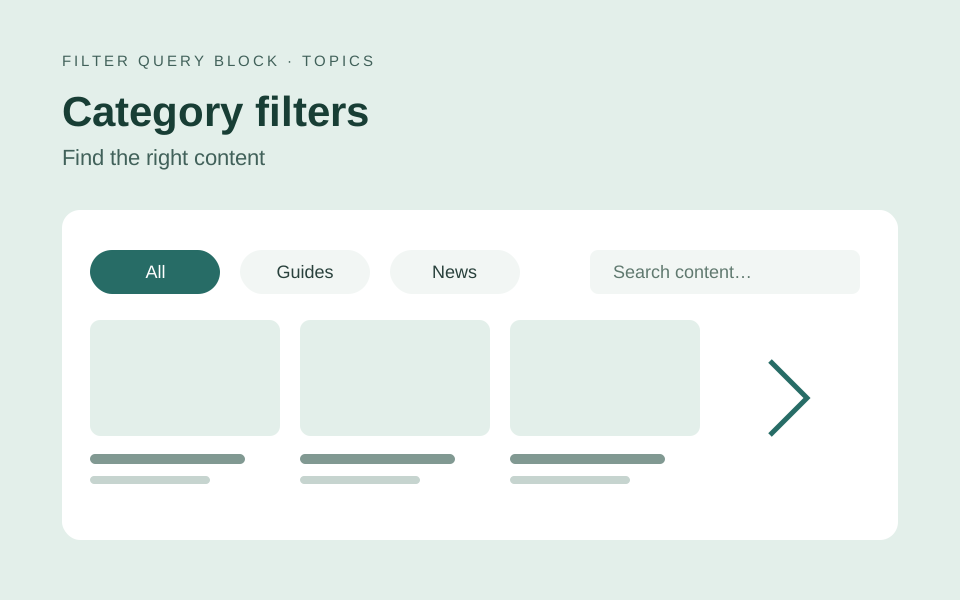
In Controls, select the category control. Buttons work well for a short list of topics. A dropdown is a useful choice for a longer taxonomy. Keep the default All option to give visitors a clear way back to the complete feed.
Use single selection when a visitor should choose one category at a time. Multiple selection is useful when readers need to combine topics; choose the relationship deliberately. An IN relationship matches any selected term, while an AND relationship requires a match across the selected terms.
Add Search if visitors also need to find words in the feed. Choose the searched columns to suit the content; searching titles gives a narrower result than searching titles, excerpts and body text. Give the field a short, descriptive placeholder.
Keep the results native and readable
The results use the core Post Template. Edit its featured image, title, date and excerpt blocks just as you would in a standard Query Loop. Start with short excerpts and consistent image proportions. The plugin’s design picker supplies sensible defaults, and you can customize the result blocks independently of the filter bar.
In Filters, choose a shared theme and shape. Default controls use compact desktop spacing with larger touch targets on phones. Use Compact for a slimmer desktop row, or edit typography and spacing when the site needs its own visual treatment.
Button selection indicators and selected-label underlines are optional and off by default. Enable either in the button control if it helps the visitor recognize the selected topic. A selected background and a visible keyboard focus state still communicate the control’s state.
Test the whole visitor flow
Preview the page and select a category. Confirm the actual post titles change, then combine the category with a search. Try a search that has no matches and check that the no-results message helps visitors recover. Reset should restore the starting Query.
Open the page on a phone. If the design uses a filter dialog, make a selection and choose Apply. Check Clear and Cancel as well. Test the keyboard, browser Back and Forward, and any core pagination blocks you have added.
Version 4 uses readable Query-scoped URLs such as ?query-4100-taxQuery-category=guides. The number belongs to that Query; another feed has its own scope. Core pagination uses the same structure, for example query-4100-page=2. Share a filtered link and confirm it reopens the same results.
Continue with your own design
Once the feed works, customize its buttons and fields or check shared links and pagination. For installation details, start with the getting-started guide.