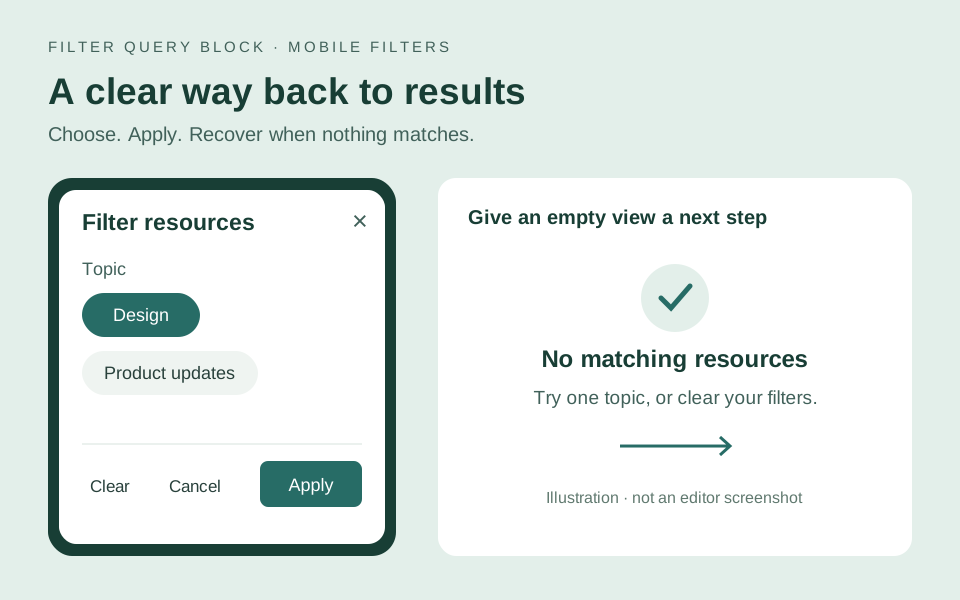
A useful mobile filter needs a clear way in and a clear way back. Visitors should be able to choose a topic, review the results and recover when a combination has no matches. In version 4, the native WordPress Query Loop keeps the result cards, pagination and empty-state message; the filter controls narrow that Query.
This walkthrough uses taxonomy choices, Apply and Reset, available in both Accomplice Query Loop Filters (Free) and Filter Query Block Pro. Free is available from WordPress.org. Post-text Search, date and numeric filters require Pro. You can build this phone-friendly topic flow without adding those controls.
Start with a feed that already returns the right content
Open a page with a working filtered Query Loop. Pick one taxonomy attached to its post type, such as Categories, and use a label visitors understand: “Topic” is usually clearer than an internal taxonomy name. Confirm a known published entry appears before testing the mobile layout.
Keep the first version small. A handful of recognizable topics can use buttons; a longer list can use a dropdown. Neither presentation creates terms or changes which posts have those terms. The buttons-versus-dropdowns guide explains that choice in detail.
Choose how filters appear on a phone
Select the filter bar in the editor and open Edit Filter Query. In Design, find Display and Show filters. Choose Popup on phones to keep the controls on the page on larger screens while showing a filter button on phones. On the page keeps them visible at every size; Popup on all screens uses the dialog on computers too.
In Advanced, open Behavior and give Accessible group label a meaningful name, such as “Filter resources”. This identifies the filter button and dialog. Choose Apply changes, save the page and review the frontend. A canvas preview alone does not show the complete visitor interaction.
Make Apply, Clear and Cancel predictable
In the modern phone popup, selections are a draft until the visitor chooses Apply. Opening Topic and choosing Design should leave the results behind the dialog unchanged until that final action. Apply submits the choices and closes the dialog so visitors can inspect the results.
Cancel, the close button and Escape discard changes made since opening the dialog. Clear clears the draft choices; the visitor then chooses Apply to request the unfiltered view. Clearing and then cancelling should leave the previously applied selection intact. Test these as separate actions so your instructions match the actual experience.
Outside the popup, Apply automatically in Advanced controls whether inline choices submit immediately. If you turn it off, keep an Apply control visible. Include a Reset control as an obvious route back. Reset clears visitor selections for this Query; it does not remove the Query’s fixed content restrictions.
Write an empty state that offers a next step
In the Query Loop, edit the core No Results block and its paragraph. Use a practical message such as: “No resources match these topics. Try one topic at a time, or open Filter resources, choose Clear, then Apply.” Keep the wording consistent with your chosen group label and controls.
An empty result does not necessarily mean the filter is broken. Two valid selections can have no shared posts. Try a known topic on its own, then combine it with another filter. If clearing selections still returns nothing, check the Query’s post type and fixed rules, publication status and actual taxonomy assignments before changing the design.
Check the complete journey at a narrow width
Preview the saved page at a phone width. Open the dialog with the keyboard as well as a pointer, check that focus is visible, and use Tab through the controls. Check that Escape closes it and focus returns to the filter button. Inspect long labels and the footer: Apply and Cancel must remain reachable without horizontal scrolling.
Apply a known topic and confirm the expected titles. Reopen the dialog, change a choice and Cancel; the applied view should remain. Try Clear followed by Cancel, then Clear followed by Apply. Create a combination you know has no matches, confirm the recovery message appears, and follow its instructions back to results.
Finally, check ordinary pagination and reopen a copied filtered URL. Do this on the saved frontend, including a larger screen, so a convenient popup does not hide a broken browsing flow. Continue with shared links and pagination, or the category-filter setup guide if the underlying Query still needs work.